Approve as the business
Edition: Community and Enterprise
For the data owner or manager who gives the business approval. You judge what the change means for the business: the template, the reason, the ticket and the values in masked form.
Approve or reject
- Open the request from the "Review queue" or from "Home".
- Read "What will run": the template, and under "Values, masked" the values as
****plus the last digits. The mask never shows the length. - Read the reason and the ticket in the header.
- To approve, optionally add a "Comment" and select "Approve", or "Sign and approve" with your passkey.
- To reject, write what must change in "Reason for rejecting" and select "Reject with a reason".
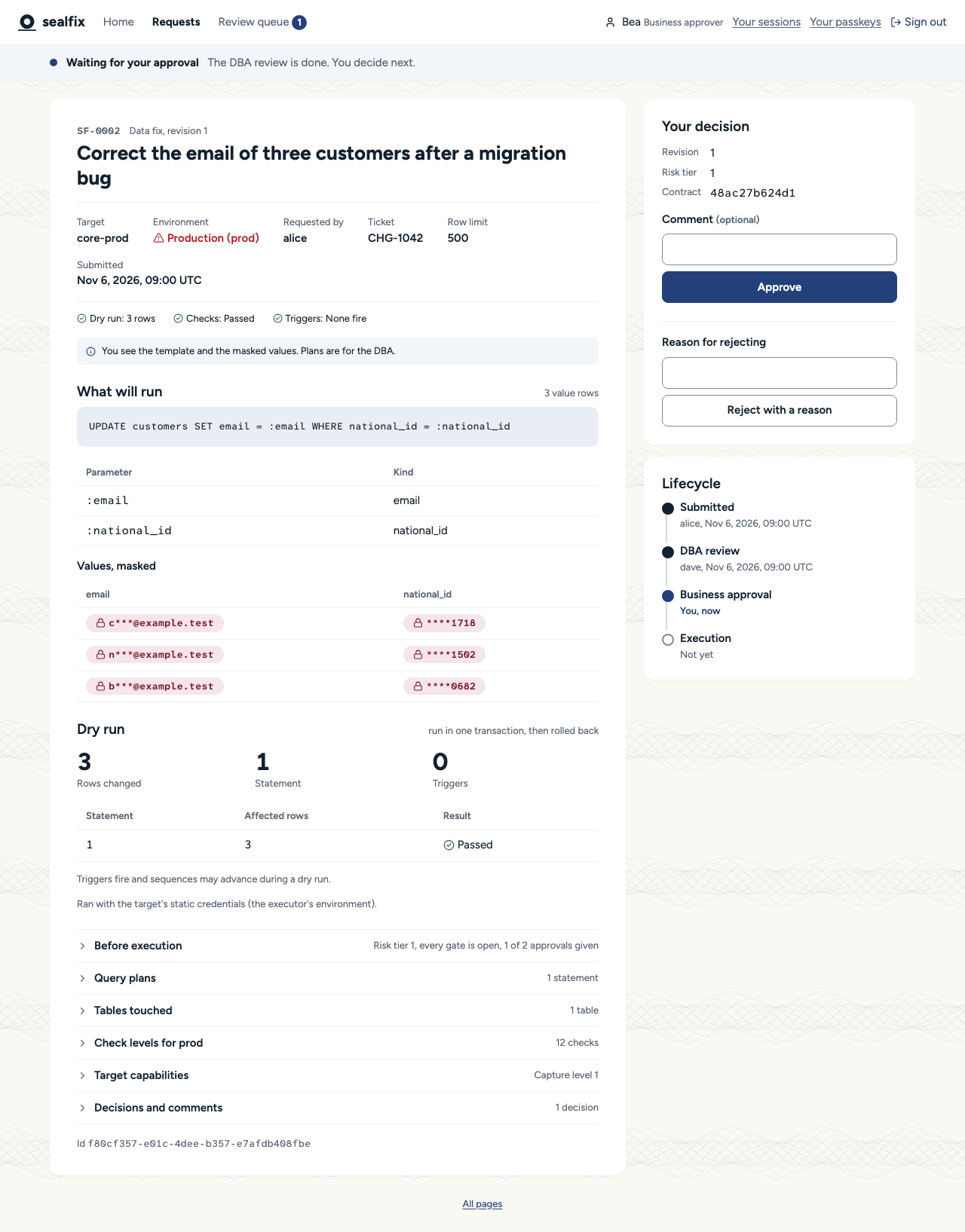
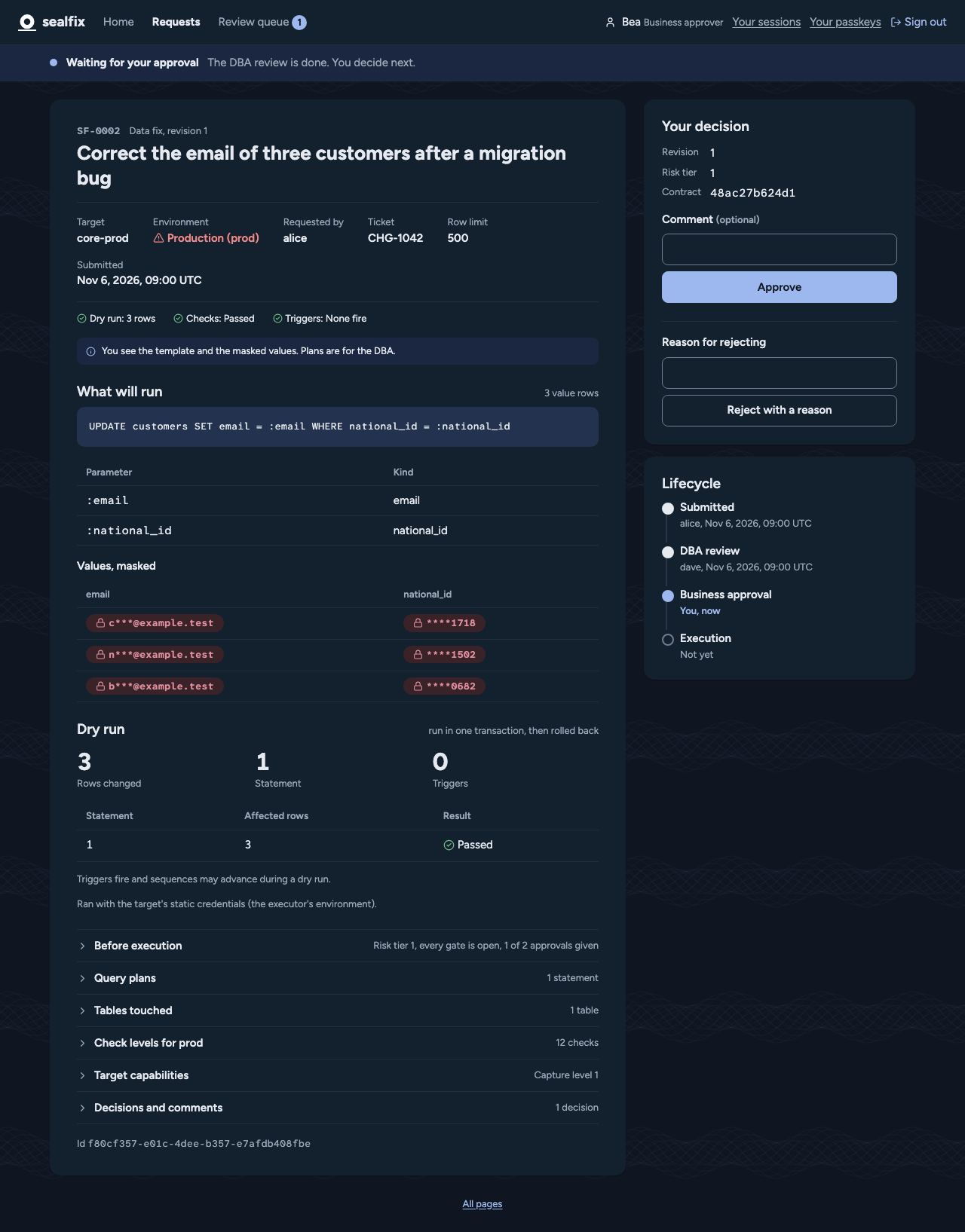
You cannot approve a request you made, nor one whose technical approval you gave.
Signed approvals
Where your environment requires signed approvals, every approval is signed with your own passkey: a security key, or the passkey of your device.
Enrol a passkey
- Select "Your passkeys" in the top bar, then "Enrol a passkey", and follow your browser's prompt.
- The enrolment is pending until an administrator approves it. Expect them to confirm with you, in person or by phone, that you enrolled it.
- Once approved, it is listed as "Active".
You are told of every passkey registered in your name. If you see one you did not enrol, tell your administrator at once.
Compare the approval code
Your decision panel shows an "Approval code" such as 7Q4K-M2XD. Your passkey prompt shows
the same code. Sign only if they match: the code is computed from exactly what you approve, so
a match proves the screen asks you to approve the request you think it does.